support.sourcegear.com

A Support Community for <a href=\"http://www.sourcegear.com/\">SourceGear</a> Products

Skip to content

Visual Studio Enhanced Client FAQ

A collection of information about Vault, including solutions to common problems.

Moderator: SourceGear

Visual Studio Enhanced Client FAQ

Postby ian_sg on Mon Feb 18, 2008 12:51 pm

Last edited by ian_sg on Wed Jun 04, 2008 2:45 pm, edited 24 times in total.
ian_sg
 
Posts: 786
Joined: Wed May 04, 2005 10:55 am
Location: SourceGear

Postby ian_sg on Mon Feb 18, 2008 1:24 pm

Enhanced client? What happened to the 2005 client?

This is it. The name just changed to better express its role in the SourceGear lineup and the addition of Visual Studio 2008 support:

Image

Image

Sometimes in support we may refer to these as the MSSCCI (pronounced “misky”) or VSIP (“vee-sip”) clients. These names refer to the API each client is written against. Before there were marketing-friendly names we used these terms internally, and most of us haven’t fully adjusted.
Last edited by ian_sg on Wed Feb 20, 2008 2:06 pm, edited 9 times in total.
ian_sg
 
Posts: 786
Joined: Wed May 04, 2005 10:55 am
Location: SourceGear

Postby ian_sg on Mon Feb 18, 2008 1:48 pm

Why a new Visual Studio Client? What was wrong with the old one?

The Classic Client uses the Microsoft Source Code Control Interface (MSSCCI) API. While there’s nothing “wrong” with it, it was designed to provide the most basic version control features to allow all source control providers IDE integration. This least-common-denominator approach obviously limits what we can do. For example, only the VSS-like checkout-edit-checkin model of development is possible under MSSCCI.

By making use of new APIs that were first available in Visual Studio 2005, we can do more. Vault supports CVS or Subversion-like edit-merge-commit development. With the Enhanced Client, we support it directly inside Visual Studio. (See the checkin chapter of Eric's How-To for more about the differences between checkout-edit-checkin and edit-merge-commit.)

The APIs used by the Visual Studio Enhanced Client also give us access to IDE features that aren’t typically the purview of a source control tool. Line History is an example of a feature that isn’t possible via MSSCCI. Line History allows you to select a section of code within a particular file and examine the history of just those lines:

Image

There are some differences between the Enhanced Client and the Classic Client that some users won't like simply because they're different. If the only way you’ve ever used source control is inside Visual Studio, or if you’ve been using a MSSCCI client for years and are happy with it, you may be more comfortable with the Classic Client. While the Classic Client is unlikely to get significant feature updates in the future, it will be supported by SourceGear and Microsoft for some time. If you like your IDE integration just the way it is, you don't have to switch.

There is additional information about the differences between the two IDE-integrated clients here.
Last edited by ian_sg on Tue Feb 19, 2008 11:54 am, edited 2 times in total.
ian_sg
 
Posts: 786
Joined: Wed May 04, 2005 10:55 am
Location: SourceGear

Postby ian_sg on Tue Feb 19, 2008 9:19 am

Which clients are compatible with which IDEs?

The Classic Client is officially supported on Visual Basic 6, Visual Studio 6, 2003, 2005, and 2008. People use it successfully in other IDEs that support the MSSCCI interface, but SourceGear does not officially support them.

The Visual Studio Enhanced Client works only in Visual Studio 2005 and 2008.

(There is also a separate Dreamweaver client not covered by this FAQ.)
Last edited by ian_sg on Tue Feb 19, 2008 11:55 am, edited 3 times in total.
ian_sg
 
Posts: 786
Joined: Wed May 04, 2005 10:55 am
Location: SourceGear

Postby ian_sg on Tue Feb 19, 2008 9:19 am

I’m upgrading from an older version of Vault, and I use IDE integration. What do I need to do to keep working?

Before Vault 4.0/Fortress 1.0 shipped, there was only one option available in Visual Studio: the Classic client. If you want to continue using the Classic client, you don’t need to do anything. If you want to change over to use the Visual Studio Enhanced Client you’ll need to update your bindings. Instructions for updating your bindings from the Classic to the Enhanced client are here.
Last edited by ian_sg on Tue Feb 19, 2008 9:57 am, edited 2 times in total.
ian_sg
 
Posts: 786
Joined: Wed May 04, 2005 10:55 am
Location: SourceGear

Postby ian_sg on Tue Feb 19, 2008 9:20 am

I’m upgrading from Vault 4.x to Fortress 1.x. Will my Visual Studio solution bindings upgrade automatically?

In order to allow side-by-side installations of Vault and Fortress clients we had to make changes to the binding format. An unfortunate consequence is that users moving from Vault to Fortress have to rebind their solutions.

One developer on the team will need to rebind the solution and check in the changes using the following steps. After that, the other developers should first do a get latest with the stand-alone Windows client. They can then work normally within Visual Studio.

If you uninstalled the Vault client, when you open a solution that had been bound with the Vault Enhanced Client, you’ll be informed that the relevant application has been removed and asked if you’d like to remove the bindings:

Image

Choose Yes to remove the bindings, and continue below at "Ensure that the Fortress Visual Studio Enhanced Client is selected..."

If you have both a Fortress and a Vault client installed side-by-side, but the server on which this solution resides has been upgraded to Fortress, you’ll still need to update your bindings. After the server has been upgraded to Fortress you'll have to open your Vault-bound solution offline by clicking the "Work Offline" button when prompted to log in:

Image

When the solution is open, choose File | Vault Source Control | Change Vault Bindings and unbind the entire solution.

Image

Image

Ensure that the Fortress Visual Studio Enhanced Client is selected in your Source Control Options:

Image

Choose File | Fortress Source Control | Change Fortress Bindings and re-bind the solution.

Image

Check in your changes. (You may need to first check out the modified solution and project files.) Ask the rest of the to team get the latest files via the stand-alone Windows client. Thereafter they can work normally in Visual Studio.
Last edited by ian_sg on Tue Feb 19, 2008 11:19 am, edited 3 times in total.
ian_sg
 
Posts: 786
Joined: Wed May 04, 2005 10:55 am
Location: SourceGear

Postby ian_sg on Tue Feb 19, 2008 9:21 am

My project files constantly get checked out exclusively, which is a real pain. What’s the deal?

This is often the first limitation of the checkout-edit-checkin model that people experience first-hand. Source control tools that support only this model (e.g. SourceSafe) impose this limitation. Out of the box, Vault is configured for “VSS Style” concurrent development:

Image

This combination of options means that every time a developer wants to change a file, he needs to exclusively lock it first. This applies to project files, too. Here’s a typical scenario:
  1. Developer A adds a new class to a project. The project file needs to reference this new file, so it is checked out.
  2. Developer B tries to rename a file in the same project, which also requires a change to the project file. Because Developer A already has the project file exclusively checked out, Developer B is stuck.
See the next question for ways of dealing with this issue.
Last edited by ian_sg on Fri Feb 29, 2008 3:49 pm, edited 5 times in total.
ian_sg
 
Posts: 786
Joined: Wed May 04, 2005 10:55 am
Location: SourceGear

Postby ian_sg on Tue Feb 19, 2008 9:21 am

What are my options for working around this project file locking business?

You have two choices:

Option 1:
If you don’t ever want to have to merge a project file, your only choice is procedural: ask your developers to be aware of their checkouts to project files and minimize them. Right after you add a new file, check it and the project file in, so you don’t block anybody else. On a small team or in a project that’s not changing too much, this can work.

Option 2:
If you're willing to occasionally merge files, you can change your Vault options to allow concurrent edits. There are two different ways to go about it:

Option 2a:
Completely embrace edit-merge-commit, and configure your clients accordingly: click the CVS-style button.

Option 2b:
Move a bit toward edit-merge-commit, but not all the way: turn off only the “Always request exclusive locks” option.

In either case, you may also want to and add your project file extensions to Vault’s mergeable file type list. (See the next question in the FAQ.)
Last edited by ian_sg on Fri Mar 28, 2008 8:19 am, edited 5 times in total.
ian_sg
 
Posts: 786
Joined: Wed May 04, 2005 10:55 am
Location: SourceGear

Postby ian_sg on Tue Feb 19, 2008 9:21 am

What's the story on mergeable file types?

Even when you have “Always request exclusive locks” turned off, Vault will request an exclusive lock for files it considers non-mergeable. It makes this determination by the file’s extension. The mergeable file extension list is configurable via the administrative web interface:

Image

Even in CVS mode, files that are not in this list will also give you the following dialog when you attempt to Show Merge:

Image

By default, Visual Studio project file extensions (e.g. csproj, vcproj, vbproj) are not in this list. Note that this list is specific to a particular repository, so you’ll need to change this option for any relevant Vault repositories you’re using.

So why aren't project or solution files in the mergeable list by default?

These files are machine generated, and there are no guarantees that two different instances of Visual Studio are going to produce the same file based on the same changes. (it sometimes orders things differently, for example.) In practice, this means that you need to review the results of any auto-merges (which happen during Get Latest if that option is selected) or always perform these merges manually (via the Show Merge command).
Last edited by ian_sg on Wed Jun 04, 2008 2:44 pm, edited 8 times in total.
ian_sg
 
Posts: 786
Joined: Wed May 04, 2005 10:55 am
Location: SourceGear

Postby ian_sg on Tue Feb 19, 2008 9:36 am

I can’t open my solution directly from the repository. Why not? or Open From Vault / Open From Fortress isn't working. Why not?

Image

There are a a few possible causes for this problem:
  • The solution was not added to Vault with the same client. “Open From Vault” in the Visual Studio Enhanced Client only works on solutions that were added to the repository via “Add Solution To Vault”. If you added the solution using the Classic Client or the stand-alone Windows client, it won’t work. For most solutions, if you bind your solution using the Enhanced Client and checkin your changes, other users will thereafter be able to open the solution from the repository.
  • When the solution was added to the repository, it had a disk layout that’s incompatible with where you’re attempting to open it. This usually means the solution file was not at the top of the source tree. When you’re adding a solution to Vault and you get a warning about other users, this is what you’re being warned about. There is another FAQ below that specifically addresses this issue.

    Image
  • If you added the solution to the repository using a Vault 4.1 beta or Fortress 1.1 beta client, and your solution includes at least one solution folder, a minor bug in the beta prevents you from opening it. You can correct this issue by unbinding and rebinding the solution and checking in the changes.
Last edited by ian_sg on Fri Feb 29, 2008 3:59 pm, edited 2 times in total.
ian_sg
 
Posts: 786
Joined: Wed May 04, 2005 10:55 am
Location: SourceGear

Postby ian_sg on Fri Feb 29, 2008 3:28 pm

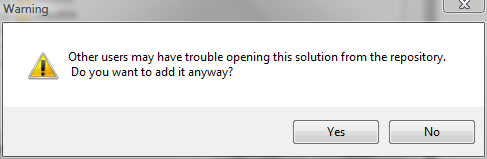
When adding my solution to Vault, I get this message: "Other users may have trouble opening this solution from the repository." What's going on?
Image

The short answer is that your solution file is not at the top of your source tree, and it should be.

What does that mean? It means you have files that belong to your solution that are not beneath the solution folder on disk.

This is okay:
Here we have a solution with one project in the same folder as the solution, and two projects in folders under the solution.
Code: Select all
C:\
   MyWork\
          MySolution\                                          <-- Solution folder
                     MySolutionFile.sln
                     MainProject.vcproj                        <-- Project in the
                     main.c                                        solution folder
                     MyProject\
                               MyProject.csproj                <-- Project beneath the
                               Class1.cs                           solution folder.
                     MyOtherProject\
                                    MyOtherProject.vbproj      <-- Project beneath the
                                    Class1.vb                      solution folder


This is not okay:
Here we have a solution with a project that is not beneath the solution folder.
Code: Select all
C:\
   MyWork\
          MySolution\                                          <-- Solution's folder
                     MySolutionFile.sln
                     MainProject.vcproj                        <-- Project in the
                     main.c                                        solution folder
                     MyProject\
                               MyProject.csproj                <-- Project beneath the
                               Class1.cs                           solution folder
   SomeOtherWork\
                 MyOtherProject\
                                MyOtherProject.vbproj          <-- Project NOT beneath
                                Class1.vb                          the solution folder
                                                                   that may cause trouble


Why is this a problem? Let's say you added this second example to Vault, ignoring the warning. The next day your colleague wants to work on this new project, and does an Open From Vault. When prompted, he chooses to put the solution in a disk path that makes sense on his machine:

Code: Select all
c:\NewProject\MySolutionFile.sln


Because of how you arranged the solution on disk, MySolutionFile.sln contains this path to MyOtherProject.vbproj:

Code: Select all
..\..\SomeOtherWork\MyOtherProject\MyOtherProject.vbproj


Now your colleague has put that solution file in c:\NewProject. You can't go up the file system tree twice from there. Visual Studio can't find the project file, and Vault doesn't know where to put it. Even if your colleague fixes up the solution to work from c:\NewProject on his system, he breaks your environment as soon as he checks in the modified solution file.

If, by some kind of policy or procedure external to Vault, every member of your team has exactly the same disk structure, you can work this way. You get the warning when you add a solution like this, but you can choose to ignore it if you understand the consequences. As long as the appropriate disk layout is possible on everybody's machine, Vault will do the Right Thing.

If you think you can safely ignore the warning, you should also be aware of user-specific paths. If you have a project here:
Code: Select all
C:\Documents and Settings\Joe\My Documents\Visual Studio 2008\Projects\MyProject\MyProject.csproj


and that project is included in this solution:
Code: Select all
c:\work\MySolution.sln


then your solution is going to reference your project with a path like this:
Code: Select all
..\Documents and Settings\Joe\My Documents\Visual Studio 2008\Projects\MyProject\MyProject.csproj


This will obviously only work for Joe. Or for everybody who happens to log onto their machine as Joe.


If you're using a web site project, and you can't figure out how to correct this problem, the next FAQ has suggestions specific to web site projects.
Last edited by ian_sg on Mon Mar 10, 2008 10:31 am, edited 3 times in total.
ian_sg
 
Posts: 786
Joined: Wed May 04, 2005 10:55 am
Location: SourceGear

Postby ian_sg on Fri Feb 29, 2008 5:17 pm

I'm trying to add my web site project to Vault and I get this warning: "Other users may have trouble opening this solution from the repository." What's going on?

Image

First, be aware that in the Visual Studio Enhanced Client, you cannot add a web site project to the repository without a solution file. If this is a problem for you or your team, you have two choices:
  1. Use the Classic Client, which supports adding just a web site, without a solution file, from within Visual Studio.
  2. Add the web site to Vault using the stand-alone client. Bind to it with the Enhanced Client via Change Bindings. If you choose this option, other users will have to get the web site via the stand-alone client when first setting up their development environment. (Open From Vault won't work.)

You're getting this warning because Visual Studio has silently created a solution file and tucked it away in the default location, regardless of where on disk your web site is. Vault wants to add this solution file, too, but knows everything won't work well if it does. This FAQ goes into the details, if you're interested. If you just want to get up and running, read on.

Create a new Web Site Project with a Vault-friendly disk layout:
  1. Create a new blank solution. Put it in a new folder where you'd like your web site (File->New Project->Other Project Types->Visual Studio Solutions).

    Image
  2. Add a new web site to the solution.

    Image

    Create the web site in a new folder inside the solution folder you just created. This won't be the default path shown, so you have to change it.

    Image
  3. You can now add the solution to Vault normally. You won't see the warning message.

    Image

Give an existing Web Site Project a Vault-friendly disk layout:
  1. Create a new blank solution. Put it in a new folder where you'd like your web site (File->New Project->Other Project Types->Visual Studio Solutions).

    Image
  2. Move your existing web site folder into the solution folder you just created.

    Image
  3. Add an existing web site to your blank solution, and choose the folder you just moved.

    Image

    Image
  4. Add the solution to Vault. You won't get the warning.
ian_sg
 
Posts: 786
Joined: Wed May 04, 2005 10:55 am
Location: SourceGear

Postby ian_sg on Wed May 21, 2008 1:45 pm

Why can't I see why my check in failed? It refers me to the message pane?

The details are in Visual Studio's output pane, which you can open under the View menu:

Image

You may need to change the output source to Vault or Fortress:

Image
ian_sg
 
Posts: 786
Joined: Wed May 04, 2005 10:55 am
Location: SourceGear


Return to Knowledge Base (Vault)

Who is online

Users browsing this forum: Yahoo [Bot] and 0 guests